
Managers can create and complete an inspection at any time using the mobile app—no prior scheduling required.
Steps to Create an Inspection
-
Open the mobile app and log in to your account.
-
Tap the Inspections tab on the bottom of the screen.
Here, you will see any scheduled inspections that are due to be completed.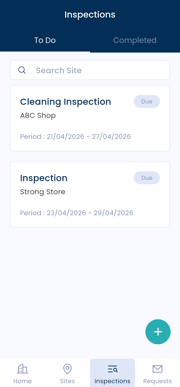
-
To create a new inspection, tap the + (plus) icon in the bottom right corner of the screen.
-
Select the site where the inspection will take place.
Use the search bar at the top of the screen to quickly find a site.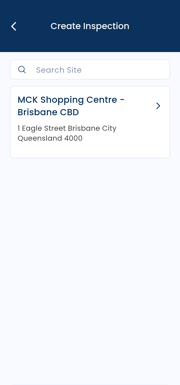
-
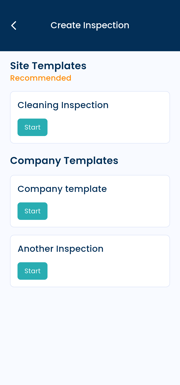
Choose the appropriate inspection template.
-
Complete the inspection by filling in all required fields.
-
Submit the inspection once finished.
Notes
-
This method is used for unscheduled inspections.
-
Ideal for Managers who need to complete an inspection on the spot without prior setup.