
This guide explains how cleaners can view their scheduled shifts (roster) in the CleanTasker mobile app. You can check your upcoming shifts and switch between weeks to see future or past rosters.
Steps to View Your Roster
- Open the CleanTasker mobile app and log in.
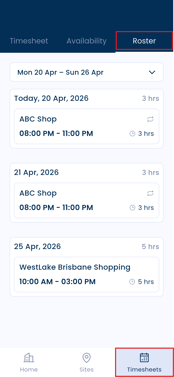
- Tap the Timesheets tab at the bottom right of the screen.
- Tap the Roster tab at the top right of the screen.
- Your rostered shifts for the current week will be displayed.
Viewing Other Weeks
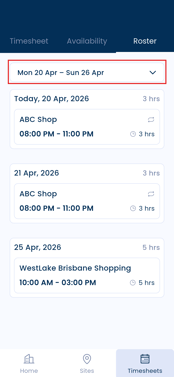
- Tap the date range at the top of the screen.
- Select a different week from the dropdown menu.
- Your roster will update to show the selected week.
Additional Notes
- Make sure you check your roster regularly for any updates or changes.
- If you cannot see any shifts, contact your manager to confirm your schedule.