
Access the Reports Section
-
From the homepage, select Reports from the navigation bar at the top of the page.
-
A dropdown menu will appear with the available report types.
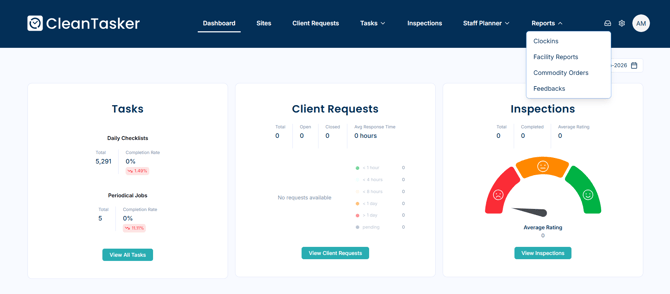
Report Types
Select the report you want to view from the dropdown menu.
Clock-In Reports
Use clock-in reports to review employee attendance and time entries.
-
From the Reports menu, select Clock-ins.
Optional filters:
-
Client
-
Site
-
Date range
You may export the data to an Excel file by clicking Export on the right-hand side of the page.
Note: Any filters applied will affect the data included in the exported report.
Facility Reports
Facility reports provide insight into activity and performance across facilities.
-
From the Reports menu, select Facility Reports.
Optional filters:
-
Client
-
Site
-
Date
Commodity Reports
Commodity order request reports allow you to review submitted commodity-related requests.
-
From the Reports menu, select Commodity Reports.
Optional filters:
-
Client
-
Site
-
Date
Feedback Reports
Feedback reports display feedback submitted through the platform.
-
From the Reports menu, select Feedback.
Optional filters:
-
Status
-
Date