
Overview
The Import Questions feature allows you to:
-
Copy inspection questions from an existing site
-
Select only the questions you need
-
Preview questions before importing
-
Quickly apply standardized inspections across multiple sites
Step-by-Step Instructions
1. Open Management Settings
-
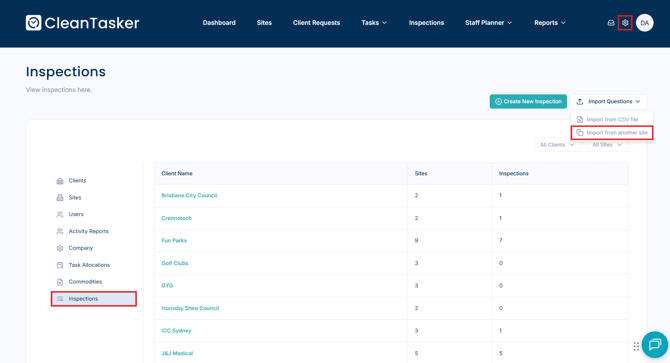
From the Homepage, click the gear icon in the top-right corner.
-
This will open the Management page.
2. Navigate to Inspections
-
In the left-hand menu, select Inspections.
3. Start the Import Process
-
Click Import Questions in the top-right corner.
-
From the dropdown menu, select Import from another site.
4. Select Source and Destination Sites
In the Copy Inspections window:
-
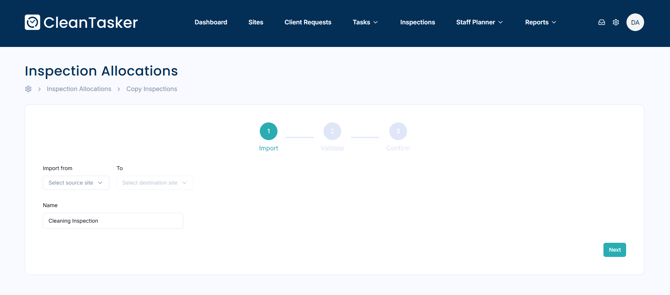
Select the site you want to copy questions from (source site).
-
Select the site you want to send the questions to (destination site).
-
Enter a name for the inspection questions.
5. Review and Select Questions
-
Once the site is selected, a preview of the inspection questions will be displayed.
-
Review the list and uncheck any questions that are not required for the destination site.
Click Next in the bottom-right corner.
6. Verify the Import
-
Review the final list of questions being copied.
-
Click Next to proceed.
7. Complete the Import
-
A notification will appear once the questions have been successfully imported.
-
Click Done in the bottom-right corner to finish.