
Steps to add a commodity
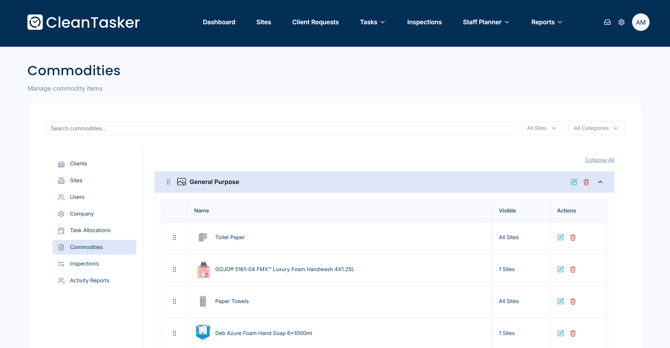
Step 1: Navigate to Commodities
-
From the homepage, select the gear-shaped icon in the top-right corner of the page to open Management.
-
On the Management page, click the commodities icon on the left had side of the page.
Step 2: Add a Commodity
-
At the bottom-left of the Commodities page, click Add commodity item.
-
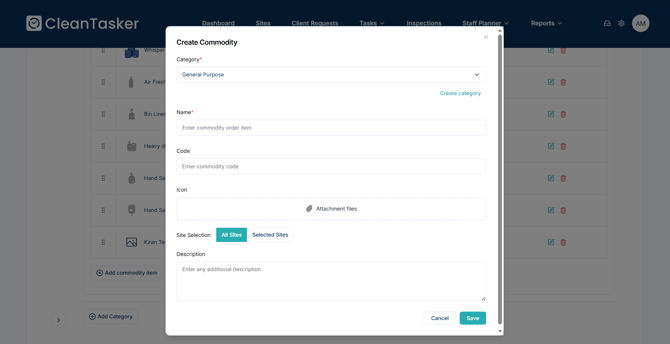
In the Create Commodity window, enter the required information:
-
Category
-
Name
-
-
(Optional) Assign the commodity to specific sites:
-
Click Selected Sites
-
Select the checkbox next to each site you want to assign the commodity to
-
Click Confirm to save your selections
-
-
(Optional) You can also provide additional details:
-
Commodity code
-
Item icon (upload an image)
-
Description
-
- Click Save to add the commodity to the list of available commodities.
Edit a commodity
-
In the Commodities tab, locate the commodity you want to update.
-
Click the pencil icon to the right of the commodity.
-
Make your changes in the Edit Commodity window.
-
Click Save to apply your updates.