A Special Clean is a task designed to handle unique cleaning needs not covered by your standard contract with the client. These tasks are one-time activities, different from regular daily, weekly, or periodic cleaning, and they typically don't recur once completed.
Creating a Special Clean Task
-
Go to the Special Clean Tasks Page
-
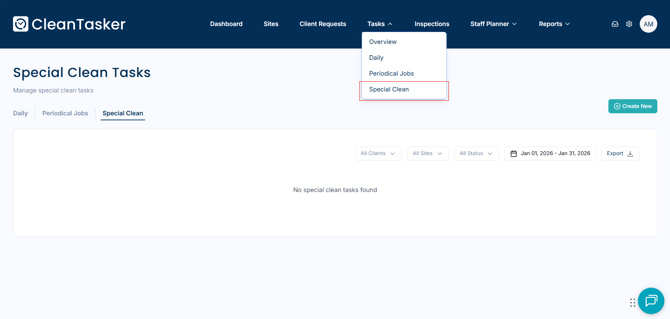
From the homepage, navigate to the top of the page and click on Tasks in the navigation bar.
-
From the dropdown menu, select Special Clean.
-
This will bring you to the Special Clean Tasks page.
-
-
Create a New Task
-
On the right side of the page, click the Create New button.
-
-
Fill in the Task Details
-
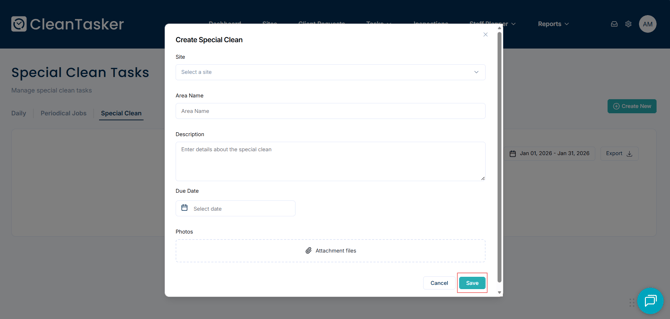
In the Create Special Clean window, complete the following fields:
-
Site: Select the location where the cleaning will take place.
-
Area Name: Specify the area within the site to be cleaned.
-
Description: Provide a brief explanation of the special cleaning task.
-
Due Date: Set a due date for when the task needs to be completed.
-
Photos (Optional): Attach any relevant photos that might help clarify the task.
-
-
-
Save the Task
-
Once all fields are filled out, click Save to create the special clean task.
-
How to Export the Special Clean Report
-
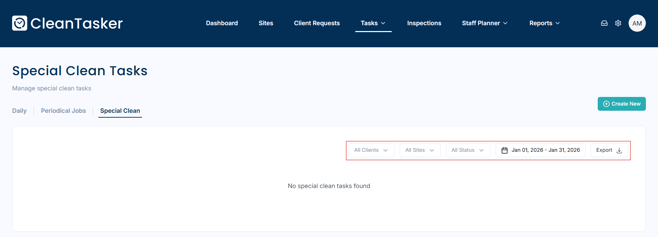
Apply Filters (Optional)
-
Before exporting, you can apply filters to narrow down the results. Options include:
-
Date Range
-
Client
-
Site
-
Status
-
-
Only the tasks that match your selected filters will be included in the export.
-
-
Export the Report
-
On the Special Clean Tasks page, locate and click the Export button on the right-hand side.
-
-
Choose Your Report Format
-
From the dropdown menu, select either Excel or PDF to download the report in your preferred format.
-