
Step 1: Accept Your Invitation
-
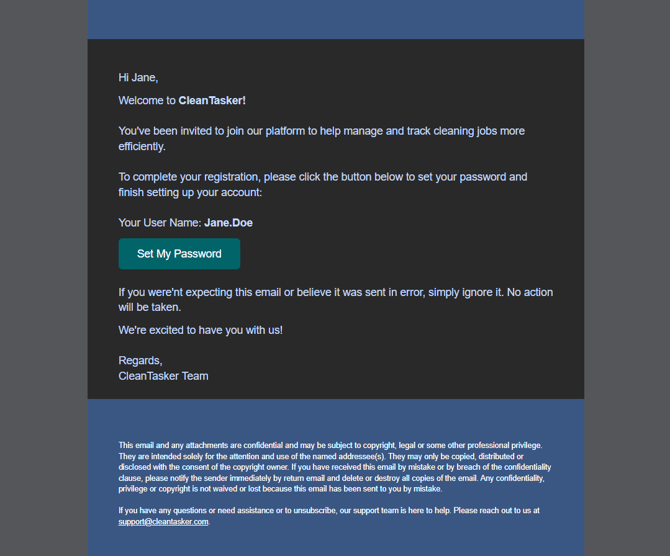
Your manager will send you an account invitation via email.
-
Open the email and click Set My Password.
Step 2: Complete the Welcome Form
-
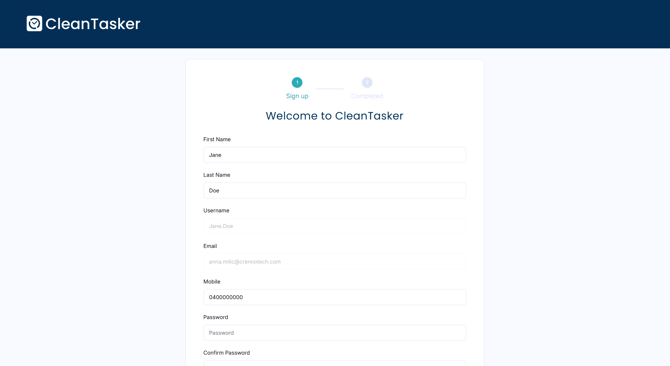
After clicking the link, you will be directed to a Welcome form.
-
Enter the required details.
-
Create and confirm your password.
-
Read and agree to the Terms and Conditions.
-
Click Submit.
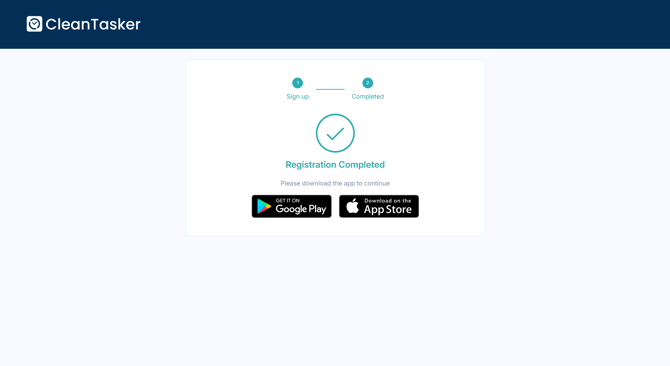
If successful, you will see a Registration Completed confirmation page.
Step 3: Access Your Account
What you do next depends on your role.
Cleaners: Download and Log In to the Mobile App
Download the App
-
Open the Google Play Store (Android) or Apple App Store (iOS).
-
Search for the app CleanTasker.
-
Tap Download or Install.
Log In
-
Open the app.
-
Enter your email and password.
-
Tap Log In.
We recommend enabling notifications to receive job updates.
Managers and Admin: Log In via the Web Portal
Managers and Admin users access the platform through the web application.
-
Open your company’s web portal link.
-
Enter your email and password.
-
Click Log In.
If you experience issues with your invitation link or login details, contact your manager for assistance.
Check out Logging in for the first time for help.