
Follow the steps below to change a user’s role.
Step 1: Access User Management
-
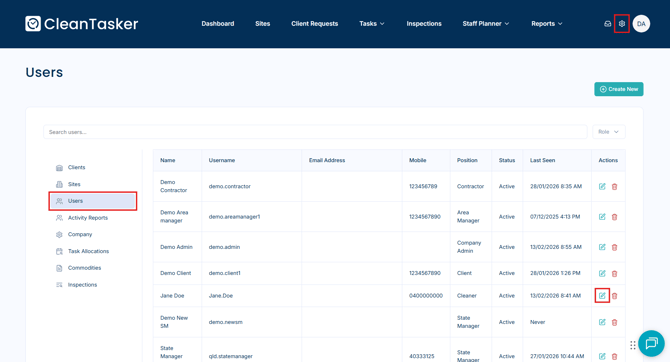
From the Homepage, click the gear icon in the top-right corner to open Management.
-
On the Management page, select Users from the left-hand menu.
-
Locate the user in the list.
-
You can use the search bar to quickly find a specific user.
-
Step 2: Open the User Profile
-
Click the pencil icon to the right of the user’s name.
-
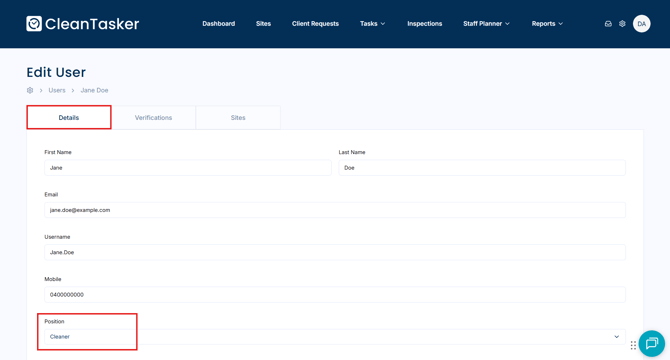
The Edit User window will open.
Step 3: Edit the User’s Position
-
Under the Details tab, locate the Position field.
-
Click the drop-down menu and select the user’s new position.
-
Click Save in the bottom-right corner of the page to apply the changes.
Important Notes
-
Role changes take effect immediately after saving.
-
Ensure the selected position reflects the appropriate level of access required for the user’s responsibilities.
Role Overview
The table below outlines what each role can access within the application.
|
Role |
Access Level |
|---|---|
|
Company Admin |
Full access to all features, settings, users, and sites across the organisation. Has full editing access. |
|
Client |
Limited access intended for customers. Can view assigned information only. |
|
Contractor/Supervisor |
Full access to all features, settings, users, and sites across the organisation. |
|
Area Manager |
Can view and manage selected sites within their assigned area. |
|
State Manager |
Can view and manage all sites within their assigned state. |
|
National Manager |
Can view and manage all sites within their assigned country. |
|
Regional Manager |
Can view and manage all sites within their assigned region. |