
Follow these steps to complete your assigned daily checklist tasks within the app.
Before You Start
You must be checked in to the site before you can complete any checklist tasks.
If tasks are not available, make sure you have successfully checked in.
1. Select a Task Category
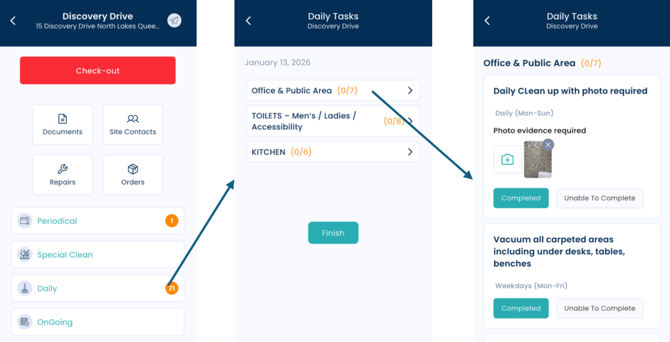
There are four task categories.
-
The orange number next to each category shows how many tasks need to be completed in that category.
-
Tap on the relevant task category to begin.
2. Select an Area
Tasks are grouped by areas of the site.
-
Tap on the area you want to work on.
-
You will see a list of tasks assigned to that area.
3. Complete Each Task
For each task:
-
Mark it as Complete
or -
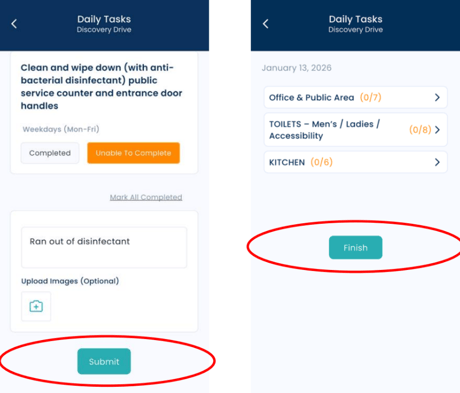
Mark it as Unable to Complete
If required, upload images as proof of completion.
Make sure every task in the area has been reviewed before moving on.
4. Submit the Area Checklist
Once all tasks in that area are checked off:
-
Tap Submit to complete the checklist for that area.
5. Finish the Entire Site Checklist
After completing all areas:
-
Tap the Finish button to mark the entire site checklist as completed.
Important:
If you do not tap Finish, the checklist will not be recorded as complete.
Troubleshooting
-
Can’t complete tasks? Make sure you are checked in.
-
Finish button missing? Ensure all areas and tasks have been submitted first.