
Navigate to Application Settings
-
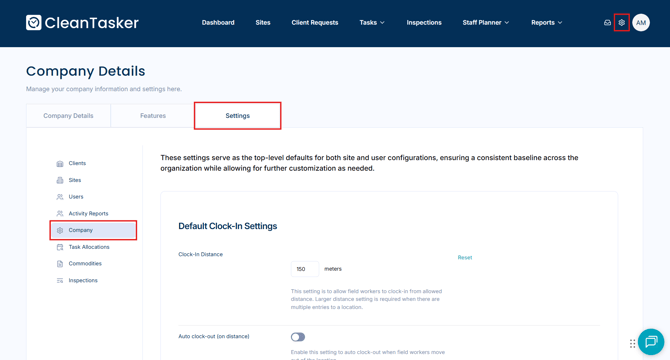
From the homepage, click the gear-shaped icon in the top-right corner of the page to open Management.
-
On the Management page, click Company in the left-hand menu.
- Navigate to the Settings tab to manage default application settings.
Configure Application Settings
Application settings allow managers to control how the system behaves for staff. These settings act as rules that define how time tracking, notifications, tasks, and shifts work across your organisation.
Clock-In Settings
Use Clock-In Settings to control how staff record their work time.
Here, you can:
-
Edit the default clock-in distance
-
Set rules for when and how staff can clock in or out
These settings help ensure time tracking is consistent and accurate across your team.
Notifications
You can configure general email notifications to control who receives submitted commodity requests and facility requests automatically.
You can also enable alerts when an inspection receives a low score, so managers can follow up quickly.
Task Time Allocation
This setting determines when daily checklists are assigned to staff.
At the selected time:
-
New checklists become available for the next 24 hours
-
Area managers receive an email with the previous day’s report
This helps ensure checklists are released consistently and reports are sent on schedule.
Shift Planning
Auto-populate timesheets
When enabled, timesheets are automatically filled using staff clock-in and clock-out times. This reduces manual entry and helps ensure accurate records.
Override timesheet entries
When disabled, staff cannot edit timesheets after they have been auto-populated. This helps prevent accidental or unauthorized changes to recorded work hours.
Helpful Tips
-
Changes made in Settings apply to all staff
-
Review settings regularly to make sure they align with your workplace policies
-
If staff report issues with time tracking or notifications, these settings are a good place to check first
If you need to adjust settings and notifications for a specific site, see How to Edit Settings and Notifications for a Site for detailed instructions.