
Step 1: Access Site Settings
-
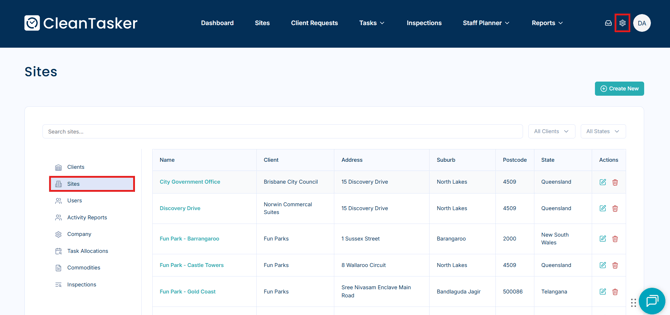
From the Homepage, click the gear icon in the top-right corner of the navigation bar.
-
Select Sites from the left-hand menu.
Step 2: Locate the Site
-
Click on the desired site from the list.
To quickly find a specific site:
-
Use the search bar to enter the site name.
-
Use the Client and State filters to narrow your results.
Step 3: Open the Site Settings Tab
-
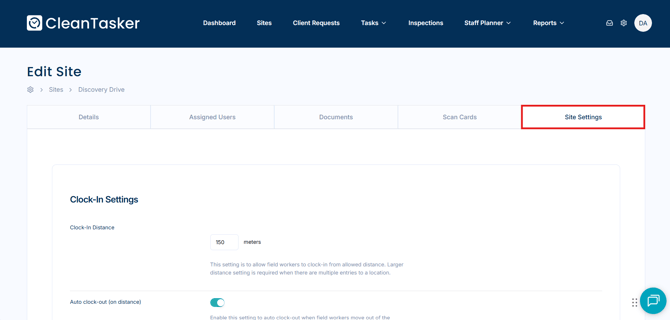
Click on the Site Settings tab.
Here, you can configure settings specific to the selected site.
Available Site Settings
Clock-In Settings
These settings control how field workers clock in and out of the site.
-
Clock-In Distance
Defines how far away a field worker can be from the site location to clock in.
A larger distance may be required for sites with multiple entrances or large premises. -
Auto Clock-Out (on distance)
Automatically clocks a field worker out when they move outside the defined site radius. -
Auto Clock-Out (on time)
Automatically clocks a field worker out after a set number of hours.This is useful if a worker forgets to clock out at the end of their shift.
Inspection Notifications
-
Enable this setting to send an email notification immediately when an inspection is completed.
-
You can choose to notify all users or selected users only.
Email Notifications
Configure which roles or specific users receive email notifications for:
-
Task reminders
-
Task completion notifications
-
Reports and related updates
General Email Notifications
Adjust which roles or specific users receive email notifications for:
-
Facility Request Emails
-
Commodity Order Emails
Task Settings
-
Checklist Allocation Time
Defines the time allocated checklists become available.
Once released, the checklist will remain available for the next 24 hours from the set time.
For system-wide changes that apply to every site, please refer to How to Configure Application Settings, which explains how to adjust general settings across the entire platform rather than for an individual site.