
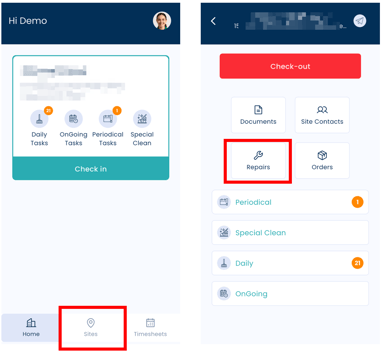
1. Go to the Sites Page
-
Tap the Sites tab at the bottom of the screen.
-
Select the relevant site where the repair is needed.
2. Open Repairs
-
Tap Repairs within the selected site.
3. Select the Area
-
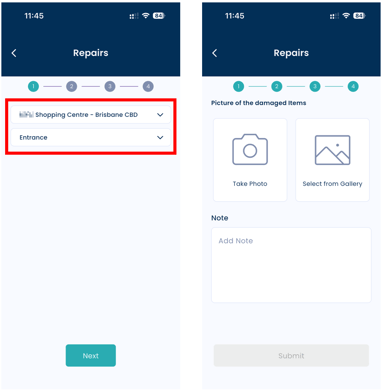
Use the dropdown menu to choose the area where the repair is required.
4. Add a Photo
Attach a photo of the damaged area by:
-
Taking a new photo in the app, or
-
Uploading an image from your phone’s gallery.
Adding a clear photo helps managers assess the issue faster.
5. Add Notes
Include any relevant details about the issue, such as:
-
Description of the damage
-
When it was noticed
-
Any safety concerns
6. Submit the Repair Request
Tap Submit to send the repair request.
The relevant managers will be notified via email so they can review and take action.
Important Notes
-
Make sure you select the correct site and area before submitting.
-
Include clear photos and detailed notes to avoid delays.